
How to Access Your Sports Pass
Follow these step-by-step instructions to add your sports pass to your mobile wallet for non-football events.
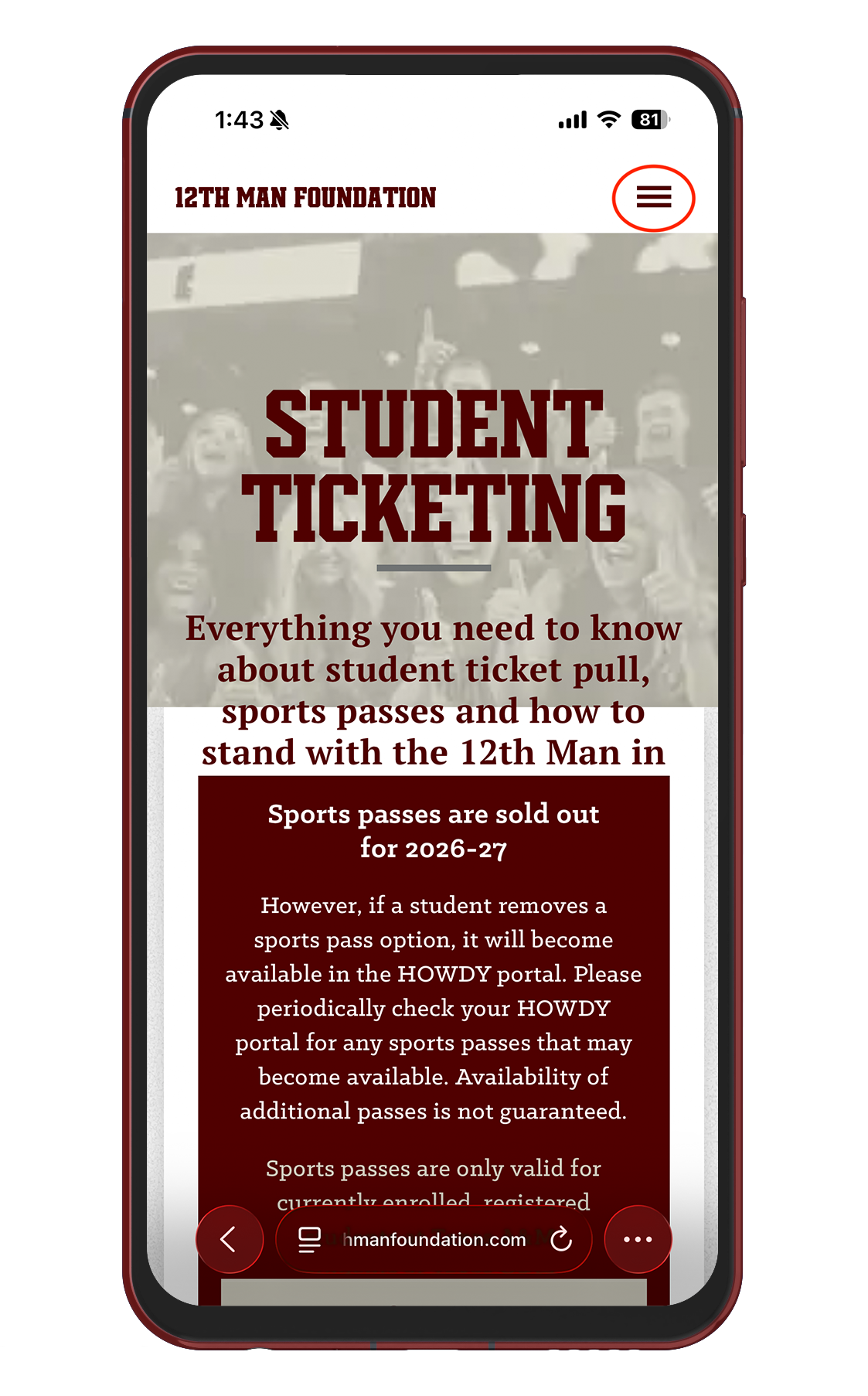
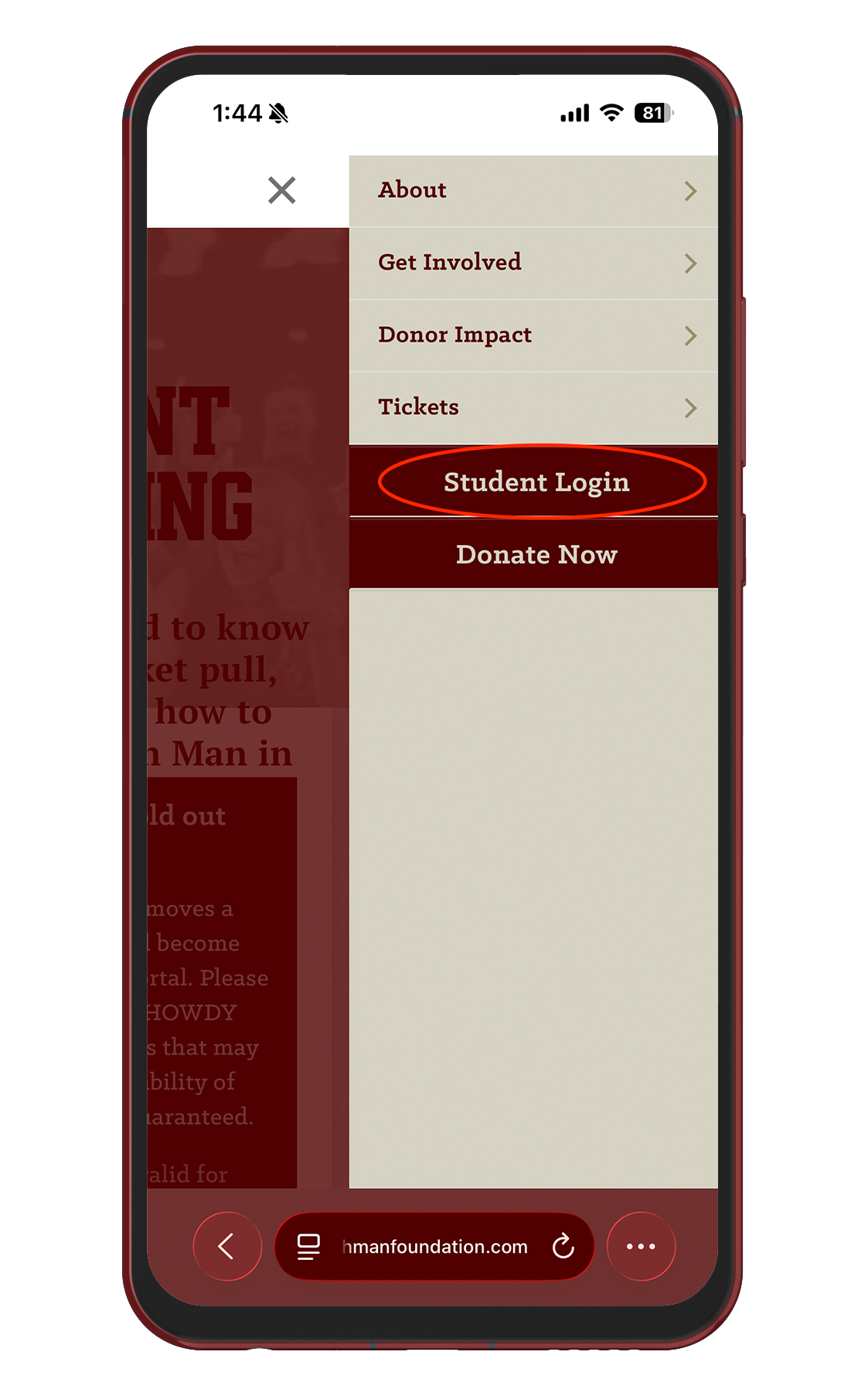
Step 2
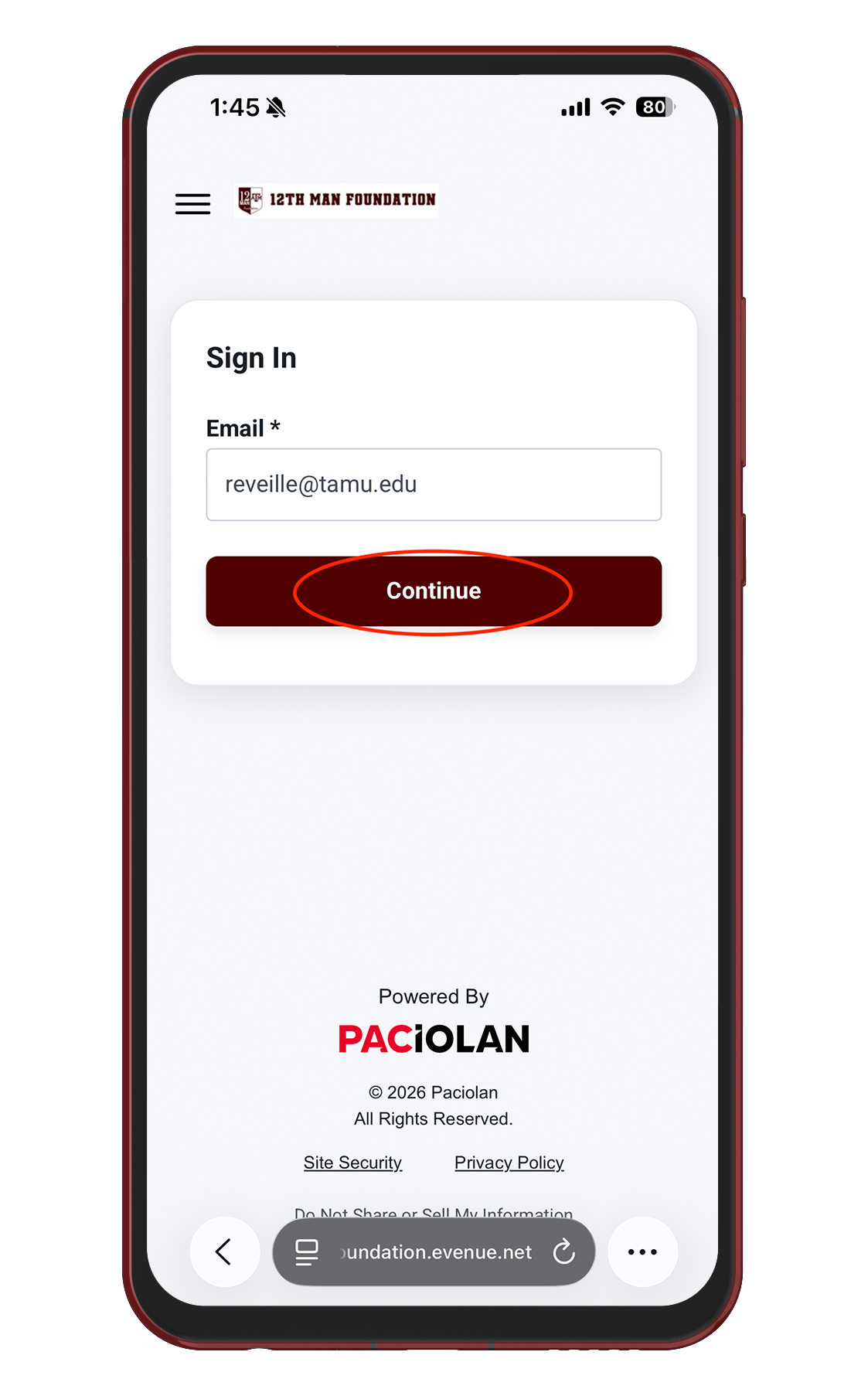
Enter your tamu.edu email address and tap “Continue.”
Step 3
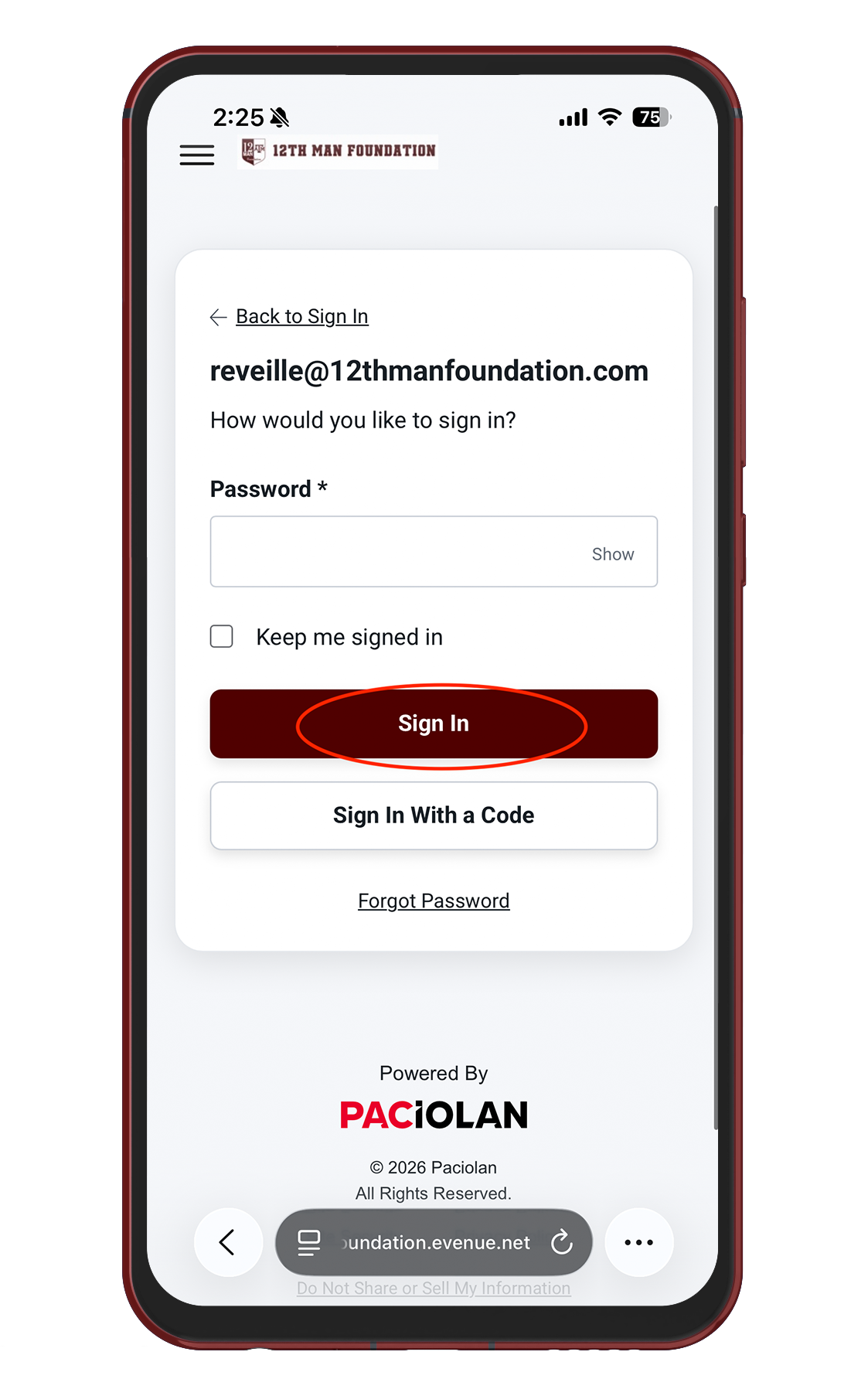
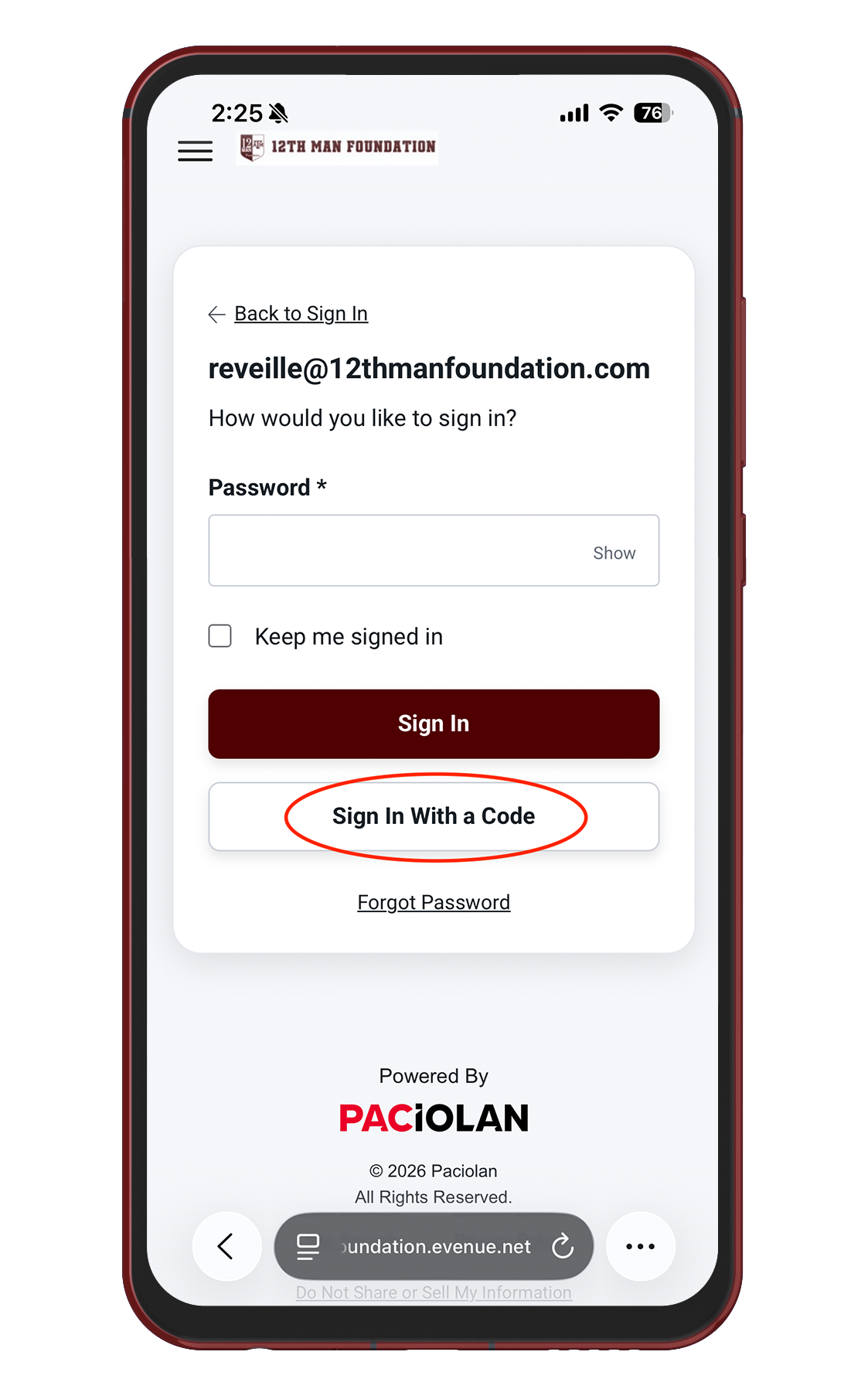
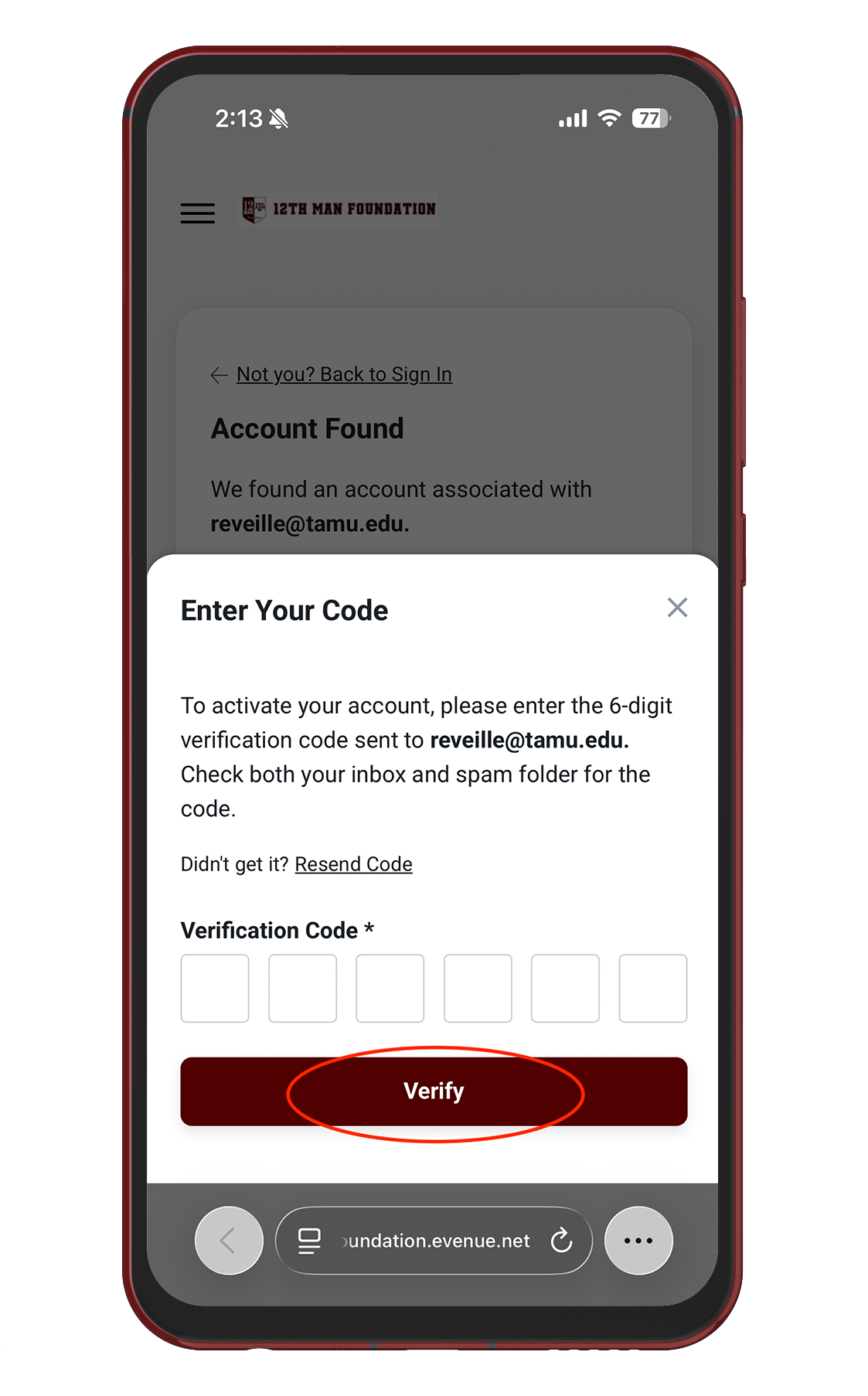
Enter your password and tap “Sign In.” If you don’t remember your password, tap “Sign in with a Code” and enter the code sent to your email.
Step 4
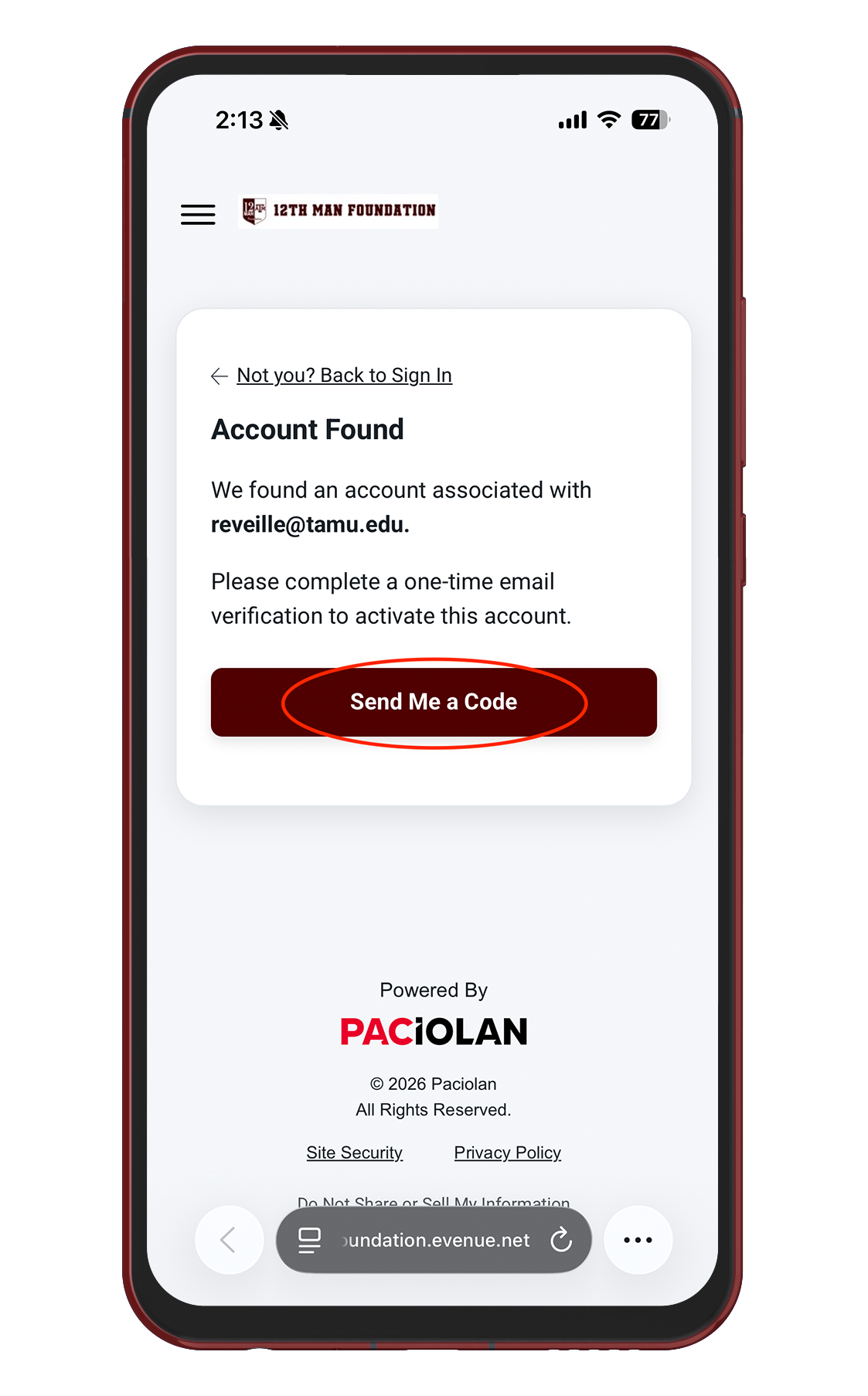
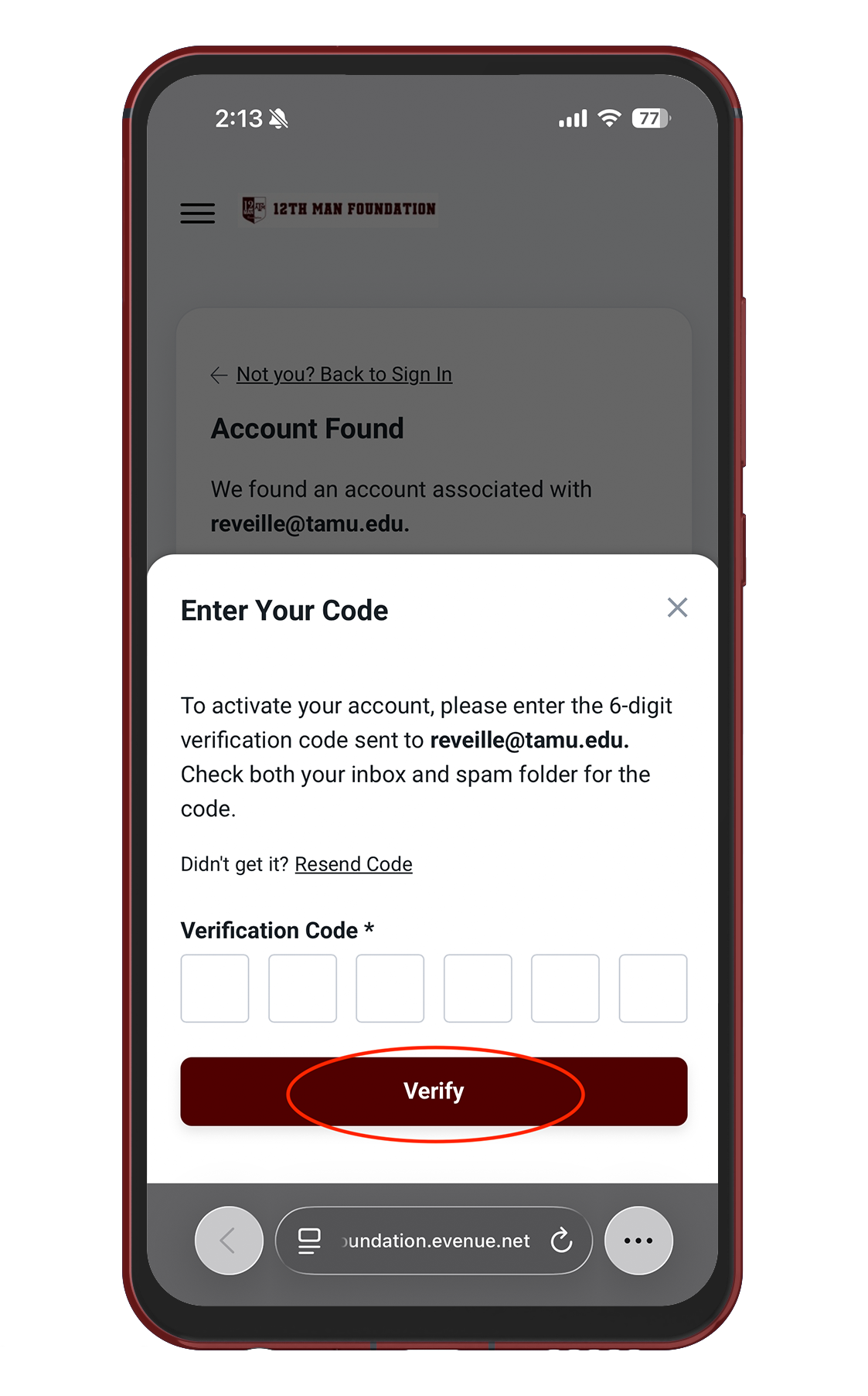
If you’ve never logged in before, you will be prompted to complete a one-time email verification to activate your account. Tap “Send Me a Code” and enter the code sent to your email.
Note: If you’re prompted to merge accounts, just follow the instructions on the screen. Be sure to choose the account that matches your UIN.
Step 5
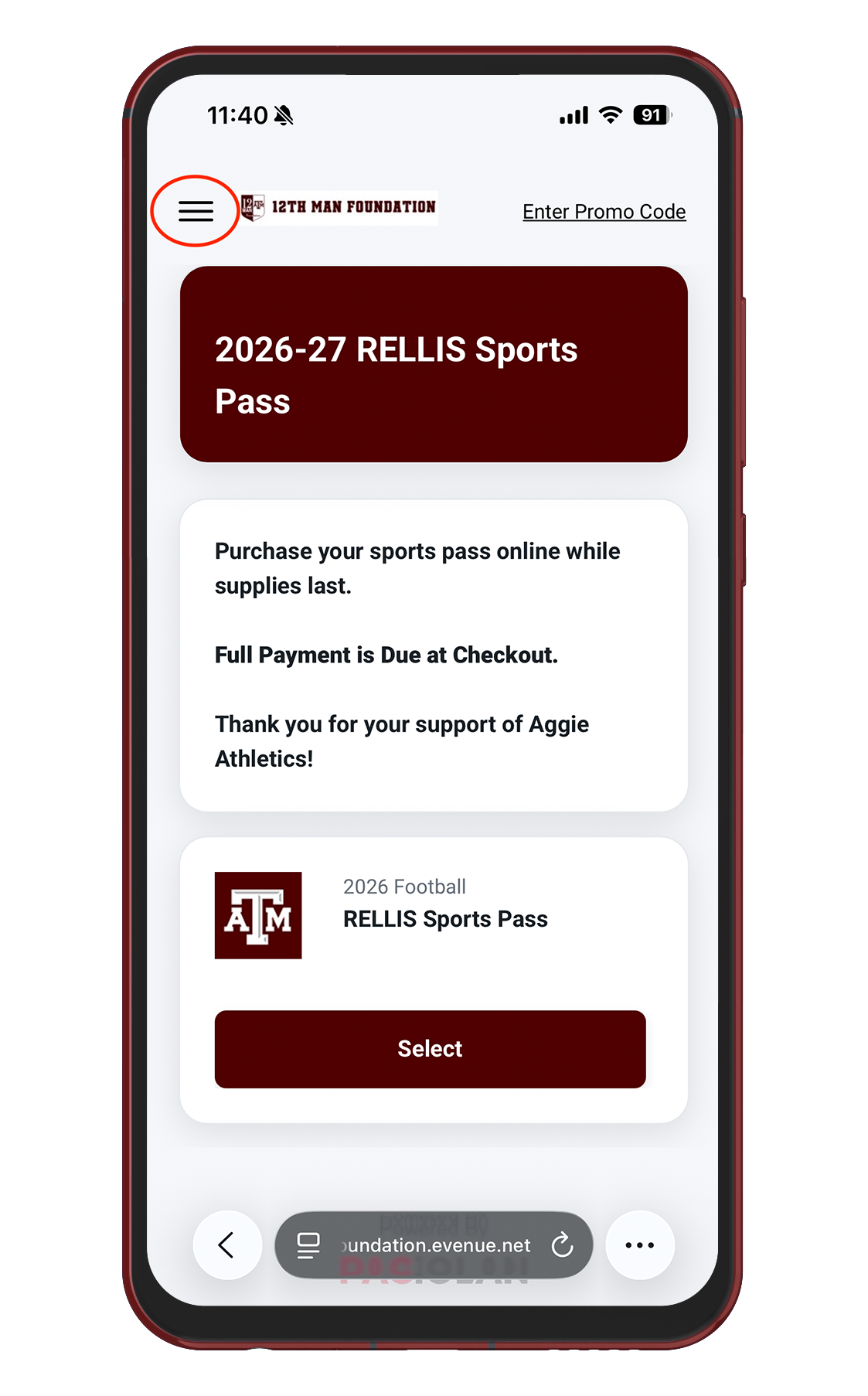
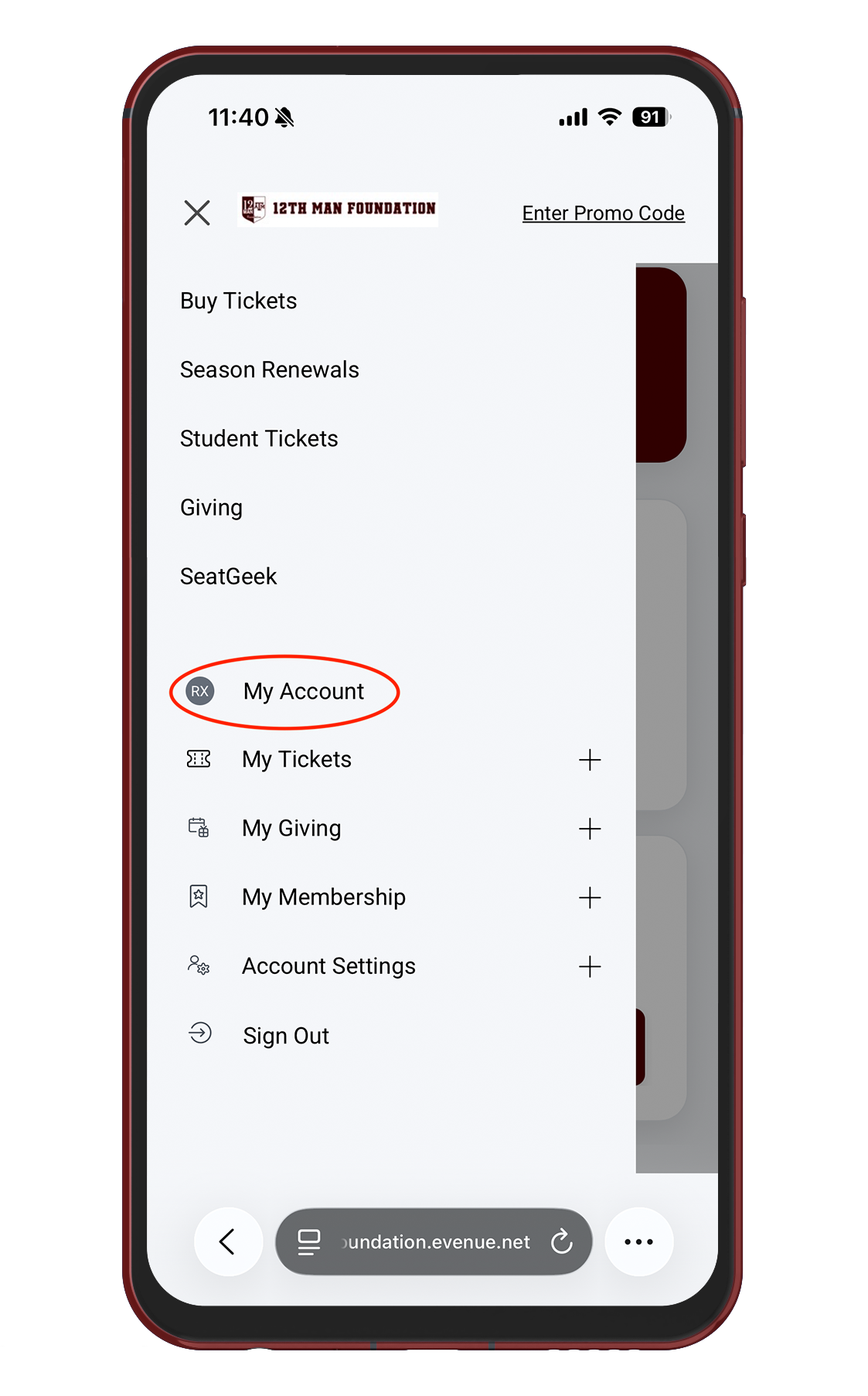
Once you're logged in, open the navigation bar in the top left corner of the screen and tap "My Account."
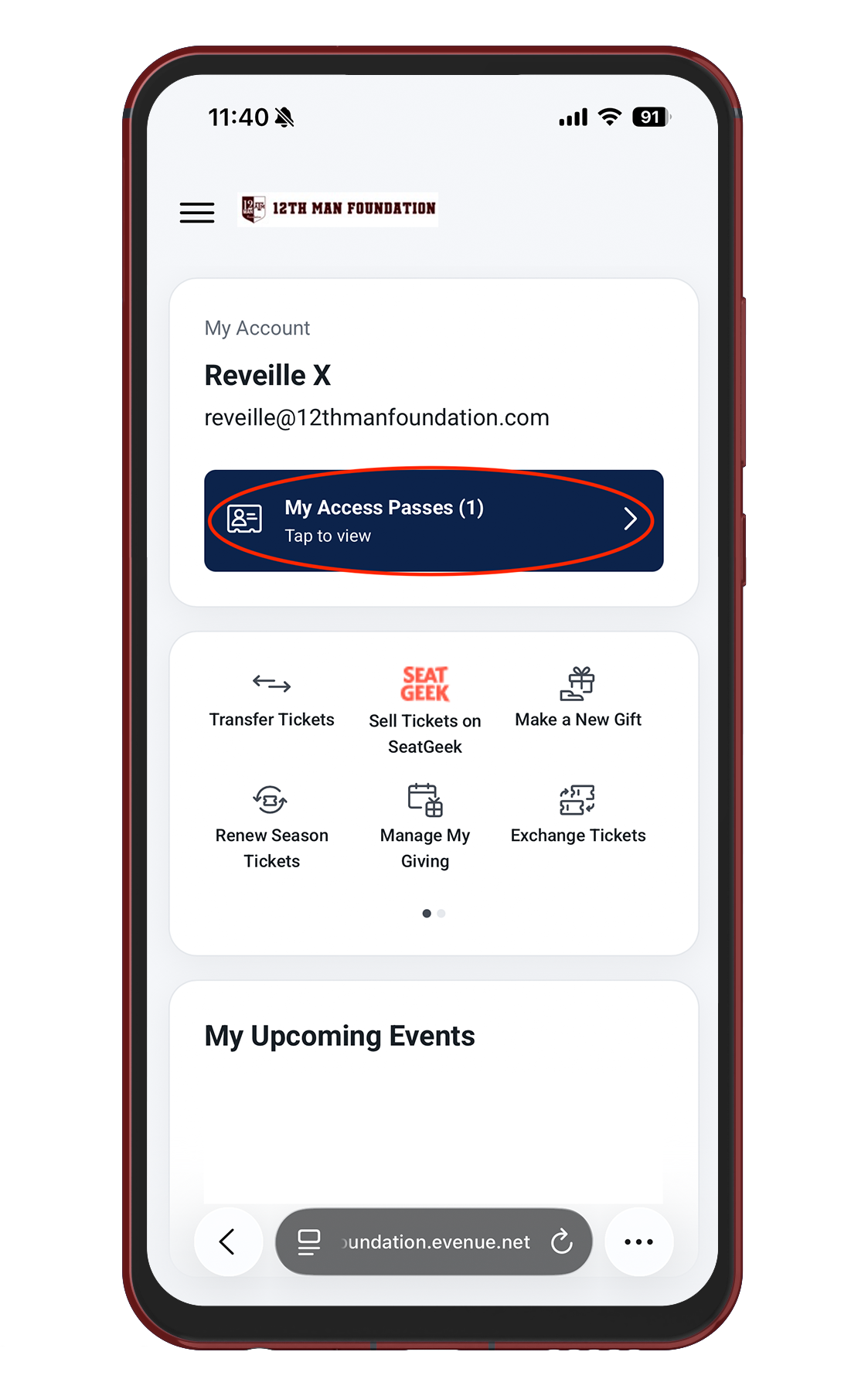
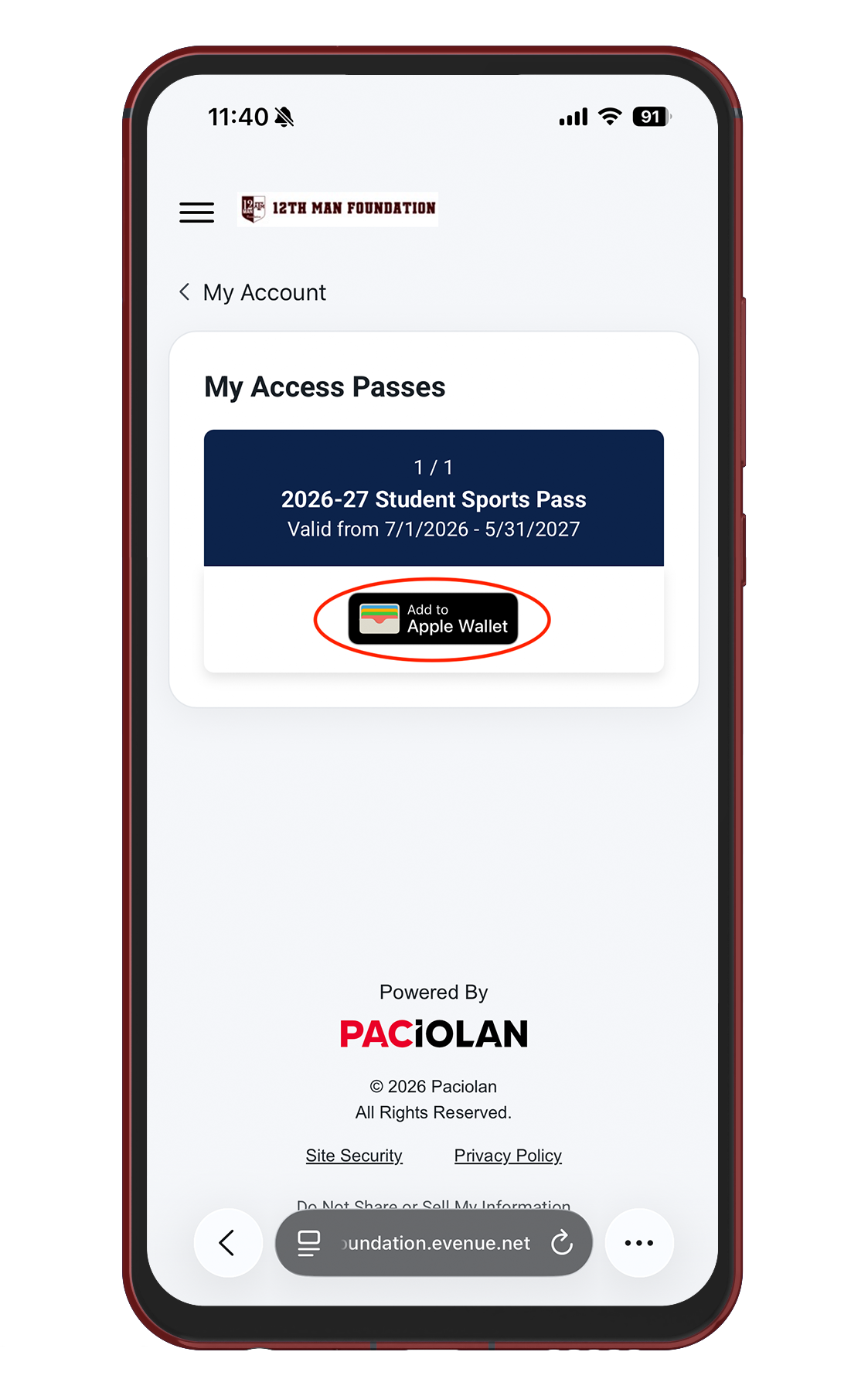
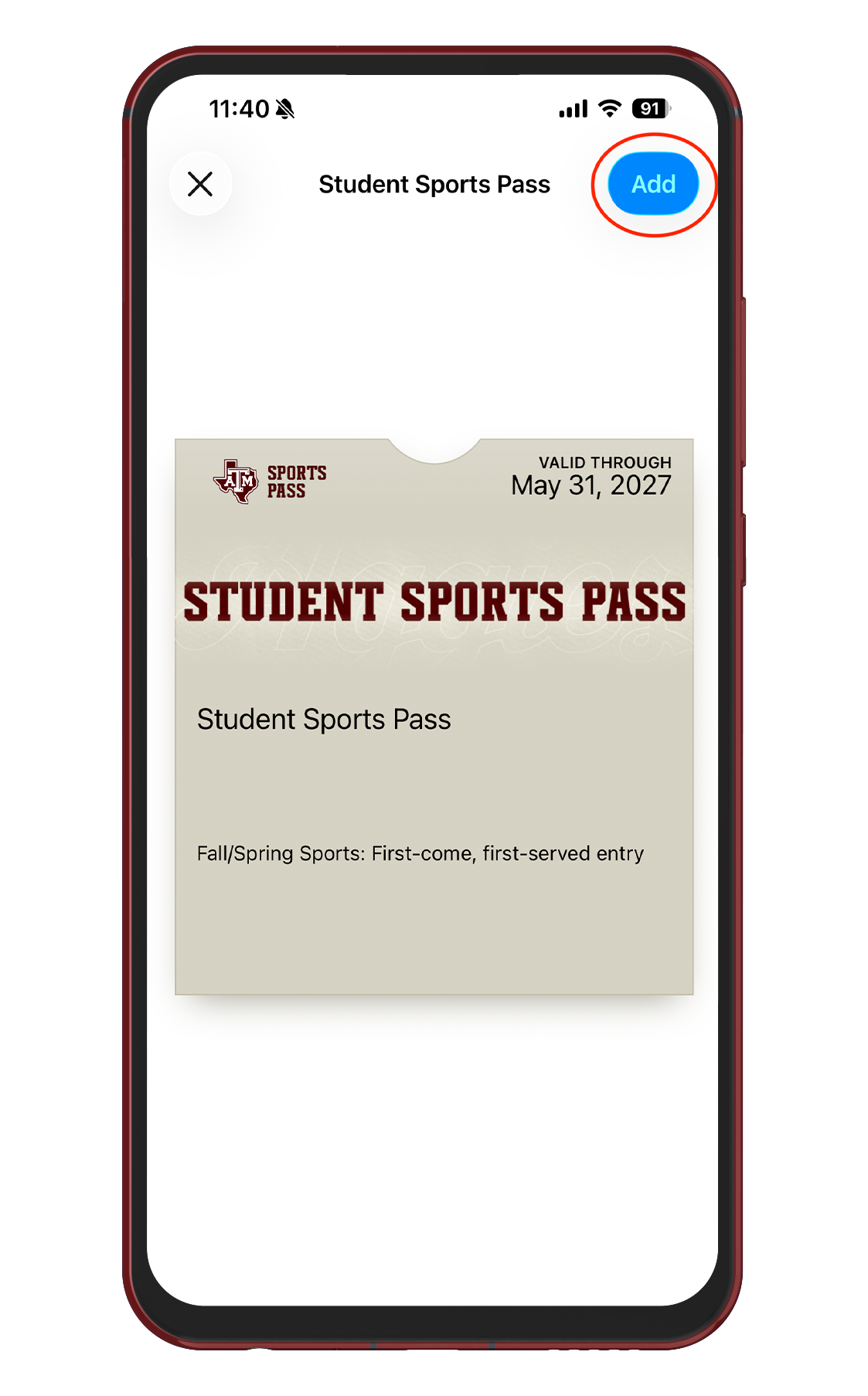
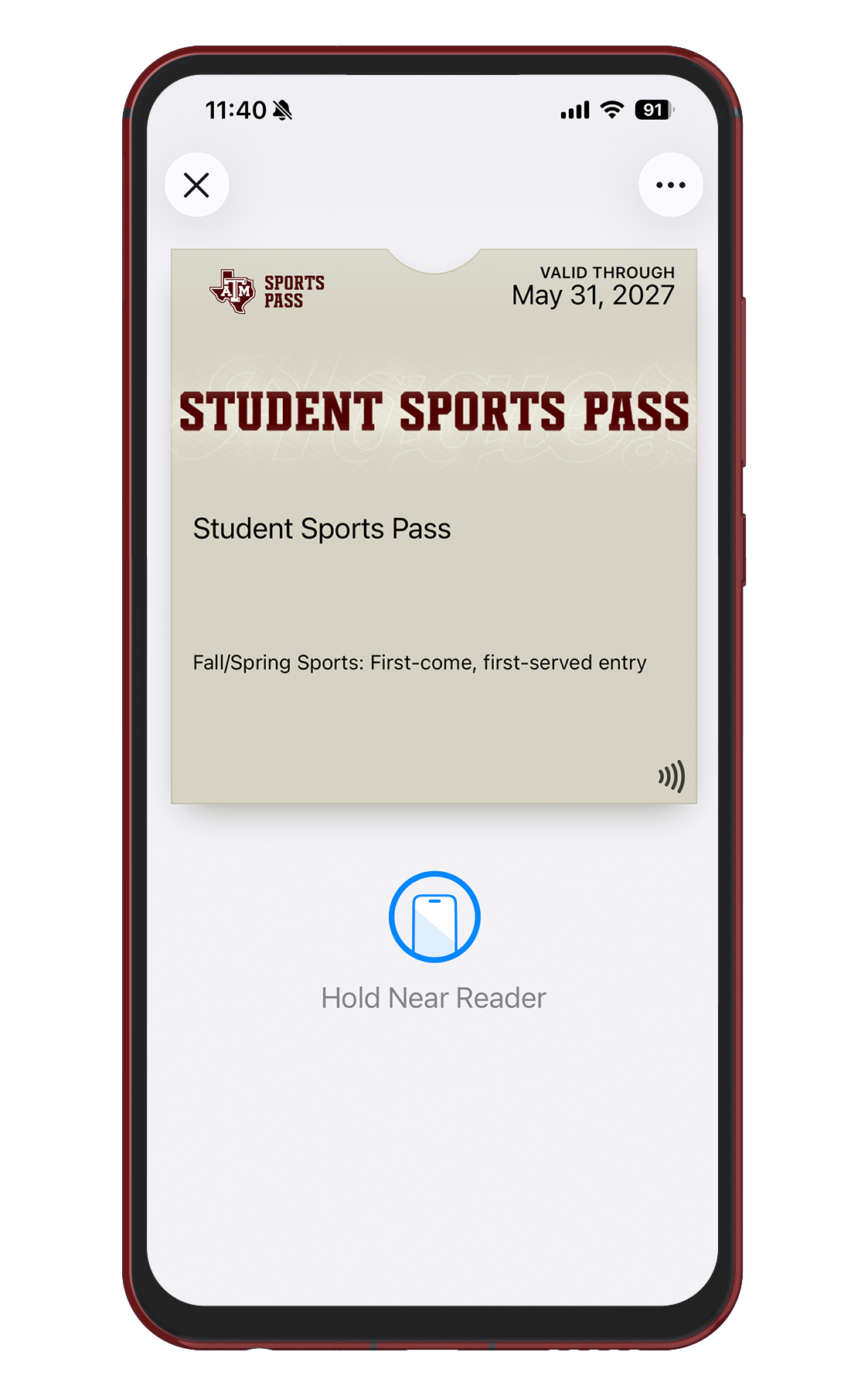
That's It!
You’re ready to attend regular season home non-football events.
Add your sports pass to your mobile wallet once, and you're set for the rest of the school year. When you arrive at an event, have your mobile wallet open and your sports pass ready to scan.